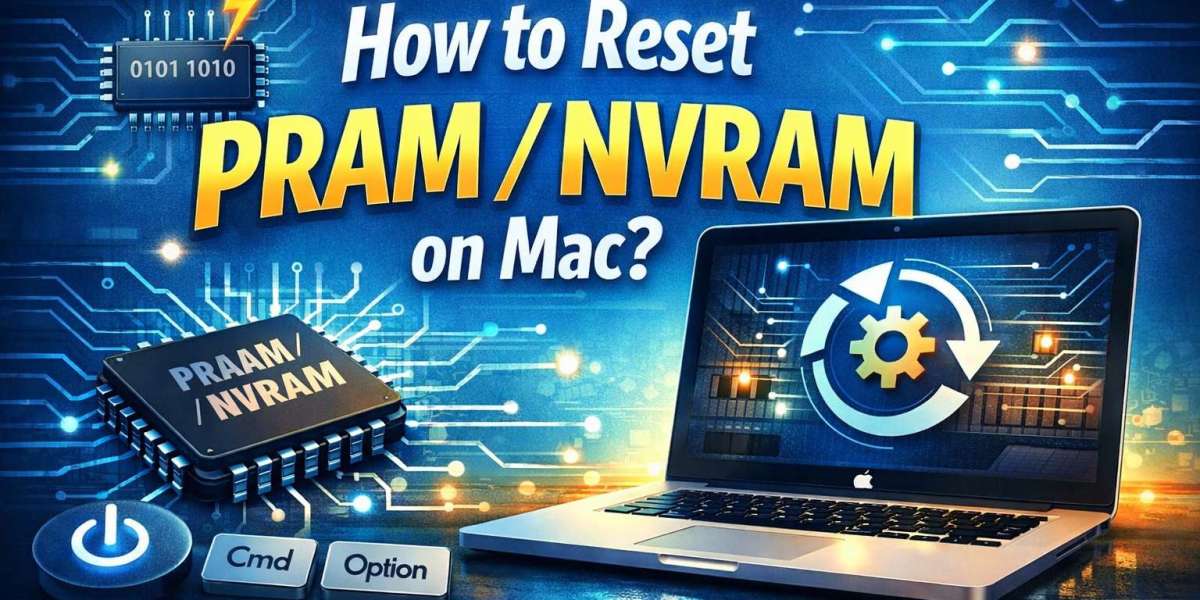

Is your Mac behaving differently, and you have tried all the different troubleshooting methods that you know? Well, in this case, resetting the PRAM/NVRAM or SMC on your macOS might be helpful. Resetting them will allow you to resolve a number of issues on your device and get it back to smooth functioning. Use the guide to learn how you can reset PRAM mac easily.
What is the PRAM or NVRAM on your macOS?
In simple words, PRAM is the Parameter Random Access Memory, which is present on a macOS to store all the settings and parameters on your computer. The system differs depending on the Mac model or OS version that you have. It is used to store everything from the screen resolution to the color depth and timezone to the speaker volume. Basically, everything that you have tweaked on your device will be stored in the PRAM or the NVRAM.
How can you easily reset the PRAM or NVRAM on your Mac computer?
Resetting PRAM and NVRAM on a Mac works the same way, no matter what kind of random access memory your computer has. Here’s what you do:
Shut down your Mac completely.
Turn it back on, and right away, press and hold these four keys together: Option (or Alt), Command, P, and R. Do this before the gray screen comes up.
Keep holding the keys for about 20 seconds, then let go. Your Mac should restart. Sometimes, you’ll hear the startup sound a couple of times or see the Apple logo appear more than once.
Once your Mac finishes starting up, check your settings. You might need to set a few things back to your preferences.
These are the instructions that you need to stick to when you want to reset NVRAM/PRAM on your computer. We also recommend using the website Datarecovee to learn more about the resetting process.