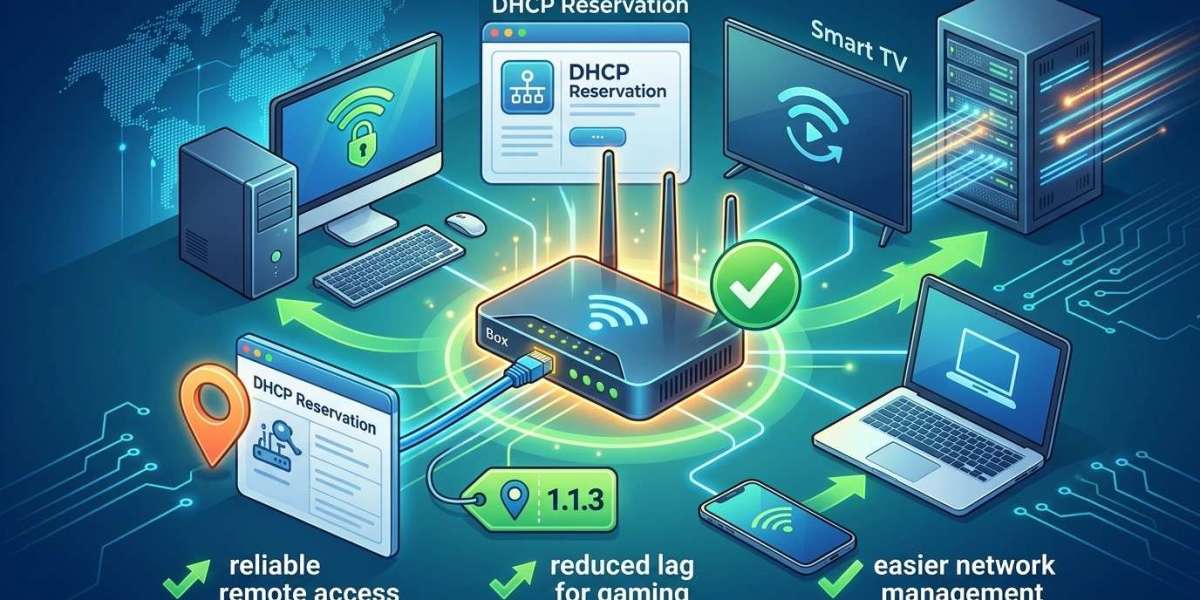

If your IPTV box frequently disconnects, loses access to shared network devices, or becomes difficult to manage through your router, assigning it a consistent IP address may help. One practical way to do this is through a feature called DHCP reservation.
DHCP reservation allows your router to assign the same local IP address to a specific device every time it connects to your home network. This can make network management easier without requiring complicated manual configuration. Whether you use an IPTV India service or an Indian IPTV Box, understanding DHCP reservation can help you maintain a more organized and reliable home streaming setup.
Table of Contents
What Is a DHCP Reservation?
Why Give Your IPTV Box a Fixed IP Address?
DHCP Reservation vs. Manual Static IP
How to Set Up a DHCP Reservation
How to Check Whether It Is Working
Common Problems and Solutions
Frequently Asked Questions
Final Thoughts and CTA
1. What Is a DHCP Reservation?
DHCP stands for Dynamic Host Configuration Protocol. It is a network service that automatically assigns IP addresses to devices connected to your router.
Normally, your router may assign different local IP addresses to your IPTV box over time. For example, your device might receive 192.168.1.105 today and a different address after reconnecting.
A DHCP reservation tells the router to always assign a particular IP address to a specific device, usually identified by its MAC address.
This means your box receives the same local IP address whenever it connects to that router's network.
Important: A DHCP reservation creates a consistent local IP address. It does not give your device a permanent public internet IP address.
2. Why Give Your IPTV Box a Fixed IP Address?
A reserved IP address can make certain network tasks easier.
Easier Network Management
When your box always uses the same local address, it becomes easier to identify it in your router's connected-device list.
More Reliable Device Access
If you use network storage, media servers, or other local services, a consistent IP address can make it easier for those devices to locate your IPTV box.
Simpler Troubleshooting
Technical support or an experienced network administrator may find it easier to identify your device when its local IP address does not keep changing.
Easier Parental Controls and Router Rules
Some routers allow users to create device-specific access schedules, bandwidth rules, or firewall policies using local IP addresses. A reservation can help keep those rules associated with the correct device.
Convenient Network Monitoring
If you monitor your home network, a fixed local address makes it easier to recognize your streaming box in network-management tools.
Keep in mind that DHCP reservation does not automatically increase internet speed or eliminate buffering. Its main benefit is consistent device addressing.
3. DHCP Reservation vs. Manual Static IP
Both methods can give a device a consistent local IP address, but they work differently.
| Feature | DHCP Reservation | Manual Static IP |
|---|---|---|
| Configuration | Set through router | Set on the device |
| Address consistency | Yes | Yes |
| Central management | Yes | No |
| Risk of address conflict | Lower when configured correctly | Higher if configured incorrectly |
| Ease of management | Usually easier | Requires network knowledge |
For most home users, DHCP reservation is the simpler option because the router manages the address automatically.
4. How to Set Up a DHCP Reservation
The exact menu names depend on your router manufacturer, but the general process is similar.
Step 1: Connect Your IPTV Box
Make sure your box is connected to your home network through Wi-Fi or Ethernet.
For a more stable streaming connection, Ethernet is often preferable when available.
Step 2: Find Your Box's MAC Address
Open the network settings on your IPTV box.
Look for information such as:
MAC Address
Hardware Address
Ethernet MAC
Wi-Fi MAC
If your box supports both Wi-Fi and Ethernet, each connection may have a different MAC address. Reserve the address for the connection you actually use.
Step 3: Open Your Router's Admin Page
Connect a phone or computer to your home network.
Open a browser and enter your router's gateway address. Common examples include 192.168.1.1 and 192.168.0.1, although your router may use a different address.
Sign in using your router's administrator credentials.
Step 4: Find DHCP Settings
Look for a menu called:
LAN Settings
DHCP Server
Address Reservation
DHCP Reservation
Static DHCP
Some routers place this option under Advanced Network Settings.
Step 5: Add a Reservation
Select your IPTV box from the connected-device list, or enter its MAC address manually.
Choose an available local IP address within the router's supported reservation range. Make sure it does not conflict with another device or an existing reservation.
Save the configuration.
Step 6: Reconnect Your Box
Restart the network connection or reboot the IPTV box if necessary.
Check its network settings to confirm that it has received the reserved IP address.
5. How to Check Whether It Is Working
After setting up the reservation:
Check the IPTV box's local IP address.
Restart the box or disconnect and reconnect it.
Check the address again.
Open your router's connected-device list.
Confirm that the same reserved address appears.
If the address remains consistent, the reservation is working correctly.
6. Common Problems and Solutions
The box receives a different IP address: Check that you reserved the correct MAC address, especially if you switched between Wi-Fi and Ethernet.
The router does not show the reservation option: Some basic routers do not support DHCP reservation. Check the manufacturer's documentation or firmware options.
Two devices have the same IP address: Review your reservations and manually configured addresses. Remove conflicting assignments and reconnect the affected devices.
The box cannot connect after changing settings: Check the router's DHCP range and reservation configuration. Restore automatic addressing if necessary.
Avoid changing advanced network settings unless you understand their purpose.
7. Frequently Asked Questions
Does a DHCP reservation improve IPTV streaming speed?
No. It keeps your box's local IP address consistent but does not increase bandwidth or improve your internet connection.
Is DHCP reservation better than a static IP?
For most home networks, DHCP reservation is easier to manage because the router controls address assignments.
Do I need a separate reservation for Wi-Fi and Ethernet?
If your box uses different MAC addresses for Wi-Fi and Ethernet, you may need a separate reservation for each connection.
Will restarting my router remove the reservation?
Usually not. Most routers save DHCP reservations in their configuration, so they remain after a restart.
Is a fixed IP address the same as a public static IP?
No. DHCP reservation gives your device a consistent private address inside your home network. A public static IP is assigned by your internet provider.
Can I reserve an IP address for multiple streaming devices?
Yes. Most routers that support DHCP reservations allow you to create separate reservations for multiple devices.
8. Final Thoughts and CTA
DHCP reservation is a simple way to keep your IPTV box on the same local IP address whenever it connects to your home network. It can simplify network management, device monitoring, and troubleshooting without requiring manual IP configuration on the box.
For most households, setting up a DHCP reservation through the router is a practical choice. Explore IPTV India and learn more about selecting a compatible Indian IPTV Box for your home entertainment setup.