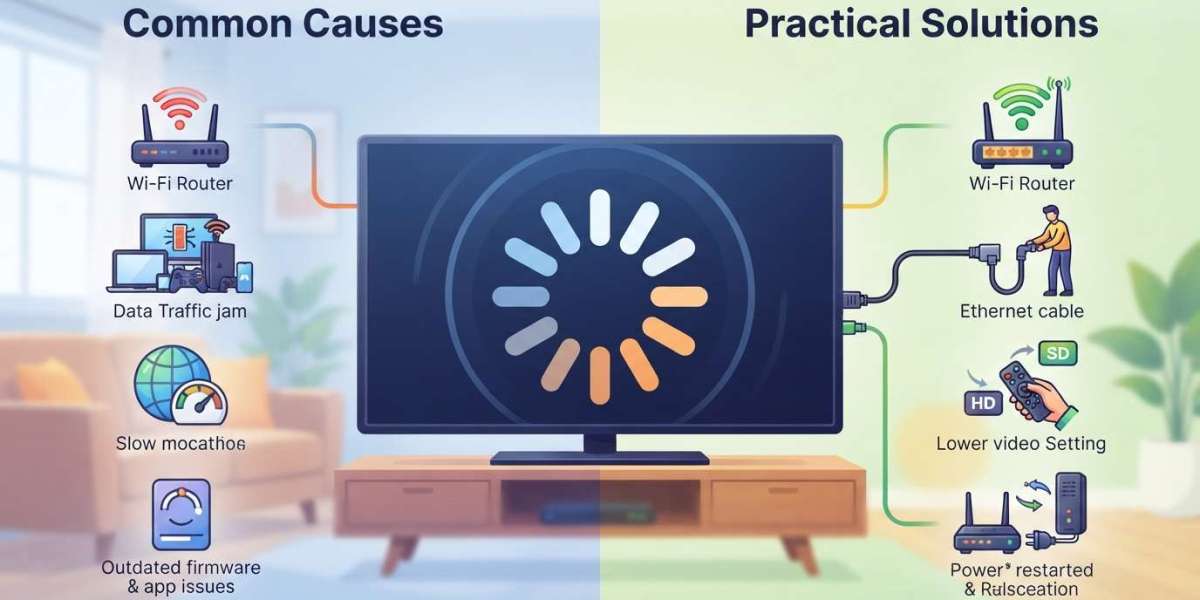

Streaming has become an important part of modern home entertainment. People use internet-connected televisions, streaming boxes, and mobile devices to watch live television, movies, sports, and regional programs. Although streaming technology has improved, buffering and playback interruptions can still affect the viewing experience.
A video may pause unexpectedly, take too long to load, or switch to a lower resolution. These problems can be frustrating, especially when watching a live event or an important program.
The good news is that buffering does not always mean you need a new television or a faster internet plan. Understanding the common causes can help you identify the problem and find a practical solution.
What Is Streaming Buffering?
Buffering occurs when a video player temporarily stores a portion of video data before or during playback.
When you start watching a video, the player downloads enough data to begin playing. It continues receiving additional data while the video is running.
If the player receives data more slowly than it consumes it, the stored video may run out. Playback pauses while the player collects more data.
This can happen because of several factors, including a weak Wi-Fi connection, network congestion, device performance, or problems with the streaming service.
1. Check Your Internet Connection
Your internet connection is one of the first things to investigate when streaming interruptions occur.
A connection may appear fast during a speed test but still experience instability during video playback. Streaming performance depends on both available bandwidth and connection consistency.
If several people in your household use the internet simultaneously, your available bandwidth may become limited.
For example, one person might be watching a movie while another downloads large files or plays an online game. These activities can compete for network resources.
Try testing your internet speed at different times of the day. If performance becomes noticeably worse during busy hours, network congestion may be contributing to the problem.
2. Improve Your Wi-Fi Signal
Wi-Fi performance can vary depending on the distance between your router and streaming device.
Walls, furniture, appliances, and nearby wireless networks may interfere with the signal. A television located in another room may receive a weaker connection than a laptop positioned near the router.
To improve your Wi-Fi connection:
Place your router in a central and open location.
Avoid placing the router inside a cabinet.
Keep the streaming device within a reasonable distance.
Reduce unnecessary obstacles between the router and television.
Restart your router if the connection becomes unstable.
If your television is far from the router, consider using an Ethernet cable or a suitable mesh Wi-Fi system.
A wired connection can provide more consistent performance when wireless interference is the main issue.
3. Choose the Right Video Resolution
Higher video resolutions require more data.
A 4K video generally needs more bandwidth than an HD video. If your internet connection cannot consistently support the selected resolution, playback may pause or the video may automatically reduce its quality.
Some applications allow users to select a preferred video quality. If buffering continues, try lowering the resolution temporarily.
For example, switching from 4K to HD may help determine whether the problem is related to bandwidth.
If the video plays smoothly at a lower resolution, your connection or device may be struggling with the higher data requirement.
4. Restart Your Streaming Device
Streaming devices can sometimes experience temporary software issues.
An application may become unresponsive, background processes may consume resources, or the device may have difficulty maintaining smooth playback.
Restarting the device can help clear temporary problems.
Turn off the device properly, wait briefly, and then start it again. If the issue continues, check whether a software update is available.
Keeping your device updated may improve compatibility with streaming applications and help resolve known performance issues.
5. Check Whether Other Applications Work Properly
If only one streaming application experiences buffering, the problem may not be your internet connection.
Try opening another video application on the same device. If other services play smoothly, the issue could be related to the original application, its servers, or the content stream.
You can also test the same application on another device connected to your home network.
This simple comparison helps narrow down the cause.
If several applications experience interruptions, investigate your internet connection, router, or streaming device before changing your subscription.
6. Understand the Role of Streaming Servers
Streaming services deliver video through servers and content delivery networks. These systems help distribute video data to viewers in different locations.
However, server capacity, network routing, and temporary technical issues can affect playback.
If a service experiences high demand or a regional network problem, users may notice slow loading or interruptions.
In such cases, changing your television settings may not solve the problem.
A reliable provider should offer clear information about its service, supported devices, and customer support options. When evaluating an internet-based television service, check its content licensing and service terms as well as its technical features.
7. Keep Your Streaming Applications Updated
Outdated applications may have compatibility problems with your device's operating system.
Updates can include performance improvements, security fixes, and changes that help applications work more smoothly.
Check your device's official app store for available updates. If an application continues to behave incorrectly, clearing its cache may help on supported devices.
Avoid deleting application data unless you understand the consequences, as this may remove saved preferences or account information.
8. Organize Your Home Entertainment Setup
A well-organized entertainment setup can make troubleshooting easier.
If you use multiple streaming devices, applications, or television services, keep track of which device and application you use for each type of content.
For viewers interested in Indian IPTV, it can be helpful to check the supported devices and channel availability before selecting a service.
Those who enjoy regional programming can also review Telugu IPTV and IPTV Telugu options to understand which channels and programs are available.
The quality of the viewing experience depends on several factors, including the content source, internet connection, device compatibility, and service performance.
9. Check Your Device's Storage and Performance
Streaming devices with limited storage or processing power may struggle when too many applications are running.
If your device feels slow, remove applications you no longer use and check its available storage.
Close unused applications when possible. Also, avoid installing unnecessary software from unknown sources.
If your device regularly freezes or struggles with basic tasks, it may be worth checking its specifications and software support before deciding whether to replace it.
10. When Should You Contact Your Internet Provider?
Sometimes buffering is caused by a problem outside your home.
Contact your internet provider if:
Your connection frequently disconnects.
Speed tests consistently show much lower speeds than expected.
Multiple devices experience the same network problem.
Your router shows unusual connection indicators.
The issue continues after basic troubleshooting.
Your provider may be able to check the connection, identify network faults, or recommend an appropriate plan.
Conclusion
Streaming interruptions can have several causes, but many problems can be addressed with simple troubleshooting.
Start by checking your internet connection, improving Wi-Fi placement, restarting your device, and testing other applications. If the problem affects only one service, investigate its application or streaming source before making changes to your home network.
A smooth entertainment experience depends on more than internet speed alone. A stable connection, compatible device, updated software, and a reliable content source all play important roles.
By understanding these factors, you can make better decisions about your home entertainment setup and enjoy live television, movies, and regional programming with fewer interruptions.