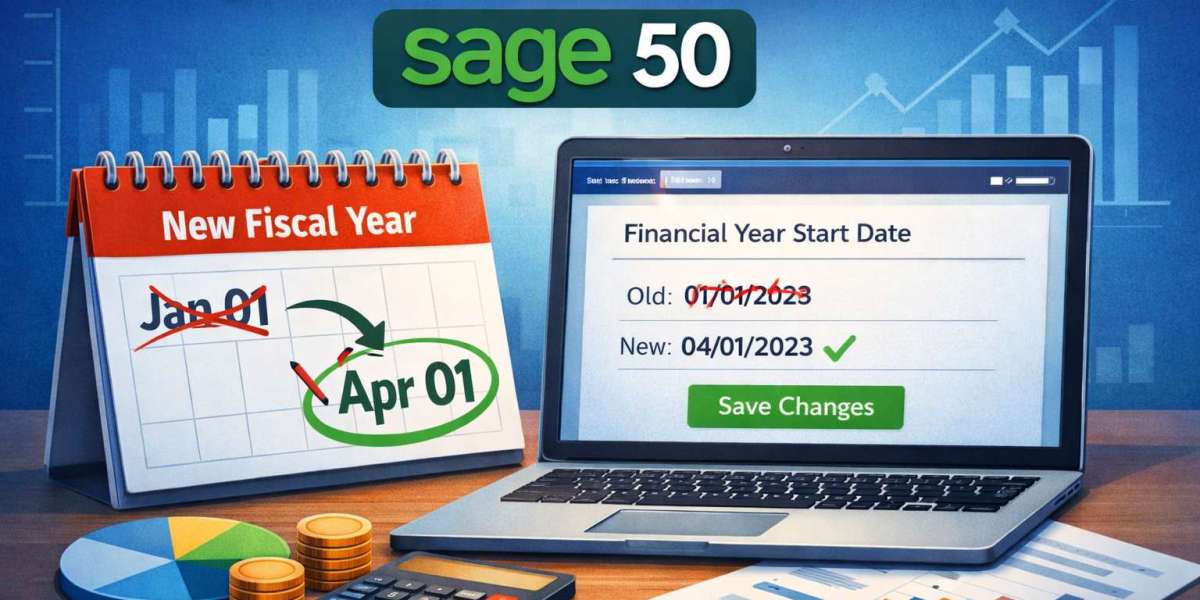

Managing the correct financial year is crucial for maintaining accurate accounting records and generating reliable financial reports. In Sage 50, the financial year start date determines how accounting periods are structured and how financial data is recorded throughout the year. If your business changes its fiscal cycle or the date was set incorrectly during initial configuration, you may need to update the financial year start date.
This guide explains the importance of the financial year setting and how you can change it safely in Sage 50.
What Is a Financial Year in Sage 50?
A financial year (also known as a fiscal year) is the 12-month period used by businesses to track financial activities such as revenue, expenses, and profits. In Sage 50, this year is divided into accounting periods—usually monthly—which help generate reports like profit and loss statements and balance sheets.
For example, many organizations operate with a January–December fiscal year, while others follow April–March, depending on internal policies or tax regulations.
Why Businesses Change the Financial Year Start Date
There are several situations where businesses may need to modify the financial year start date:
Business restructuring or ownership changes
Compliance with regional tax requirements
Incorrect fiscal year configuration during software setup
Transition to a new accounting or reporting structure
Updating the financial year ensures that financial reports accurately reflect your organization’s operational cycle.
Things to Do Before Changing the Financial Year
Before making changes in Sage 50, it is important to follow some precautions to avoid data issues.
Back up your company file
Always create a full backup of your company data to prevent accidental data loss.
Check accounting periods
Ensure that all transactions for the current financial period are properly recorded.
Verify user access
Make sure other users are logged out of the system to prevent conflicts while updating settings.
Review locked periods
If certain accounting periods are locked, they may need to be unlocked before making changes.
Steps to Change the Financial Year Start Date in Sage 50
Follow these steps to update the fiscal year start date:
Open Sage 50 and sign in with administrator credentials.
Go to the Settings or Setup menu.
Select Company Preferences or Financial Settings.
Locate the Financial Year Start Date field.
Enter the new start date for the fiscal year.
Carefully review the updated information.
Click Save to apply the changes.
Once the new date is saved, Sage 50 will automatically reorganize the accounting periods according to the updated financial year structure.
Verify Financial Data After the Update
After changing the financial year start date, it is recommended to review your financial reports to ensure everything is functioning correctly. Check reports such as:
Profit and Loss Statement
Balance Sheet
Trial Balance
General Ledger
These reports should reflect the updated accounting period based on the new financial year.
Common Issues When Changing the Financial Year
Although the process is generally simple, users may occasionally encounter challenges such as:
Restricted user permissions
Locked accounting periods
Incomplete transactions in previous periods
Resolving these issues usually involves reviewing user roles, unlocking accounting periods, or restoring data from a backup if needed.
Conclusion
Changing the financial year start date in Sage 50 helps ensure that your accounting system aligns with your organization’s fiscal reporting structure. By backing up your data, updating the financial settings carefully, and verifying reports afterward, you can maintain accurate financial records and ensure smooth accounting operations throughout the year.